THE SHORT ANSWER
In our Windows test, WAV imported but the AAC/M4A sample did not, and Audacity reported no FFmpeg library. After the recommended Windows x64 library package was installed and Audacity displayed its library versions, the same M4A imported successfully. The dropdown still did not show a separate M4A choice: entering the complete filename opened it. Check library detection and retry the sample before converting anything.
User-assisted Windows import test, completed 25 October 2026. Original screenshots were supplied by the operator following our steps. The downloaded portable package was labeled Audacity 4.0.1; its visible title says Audacity 4.0, and the About-dialog patch version was not independently recorded. Verified: WAV control import, missing FFmpeg status, subsequent library detection and import of the same synthetic AAC/M4A sample. Playback, listening, exports, private recordings and other operating systems were not tested.
1. What this test establishes
This is one observed Windows case, not a claim that every M4A problem has the same cause. Initially the sample was absent from the picker, and manually selecting it returned to an empty editor without a visible error. A known-good WAV did import. We checked Audacity’s FFmpeg status instead of declaring the file damaged.
| System | Windows 10 x64, Chinese-language interface. |
|---|---|
| Application | Official portable package labeled 4.0.1; window title Audacity 4.0. About-dialog patch version not recorded. |
| Inputs | Self-generated 4-second mono tones at 44.1 kHz: PCM WAV and AAC inside M4A. No personal audio was uploaded. |
| Detected library | F(59.16.100), C(59.18.100), U(57.17.100). |
| Evidence | Operator-assisted steps and original screenshots. Import succeeded; playback and export were not verified. |
The images retain the actual Chinese UI. English navigation labels are reading aids, not a claim that we tested an English-language installation. Select any image to open the unchanged original at full size.
2. Preserve your original and try the WAV control
Keep the original recording untouched. Save any open project, or start a separate empty project. Download the WAV control and AAC/M4A control into a local folder you can find again. These are synthetic tones, not speech. Start at a comfortable device volume if you later play them.
- Choose File → Import → Audio (文件 → 导入 → 音频).
- Select
tone-source.wavand open it. - Look for a track named
tone-sourcewith a short clip at the start.
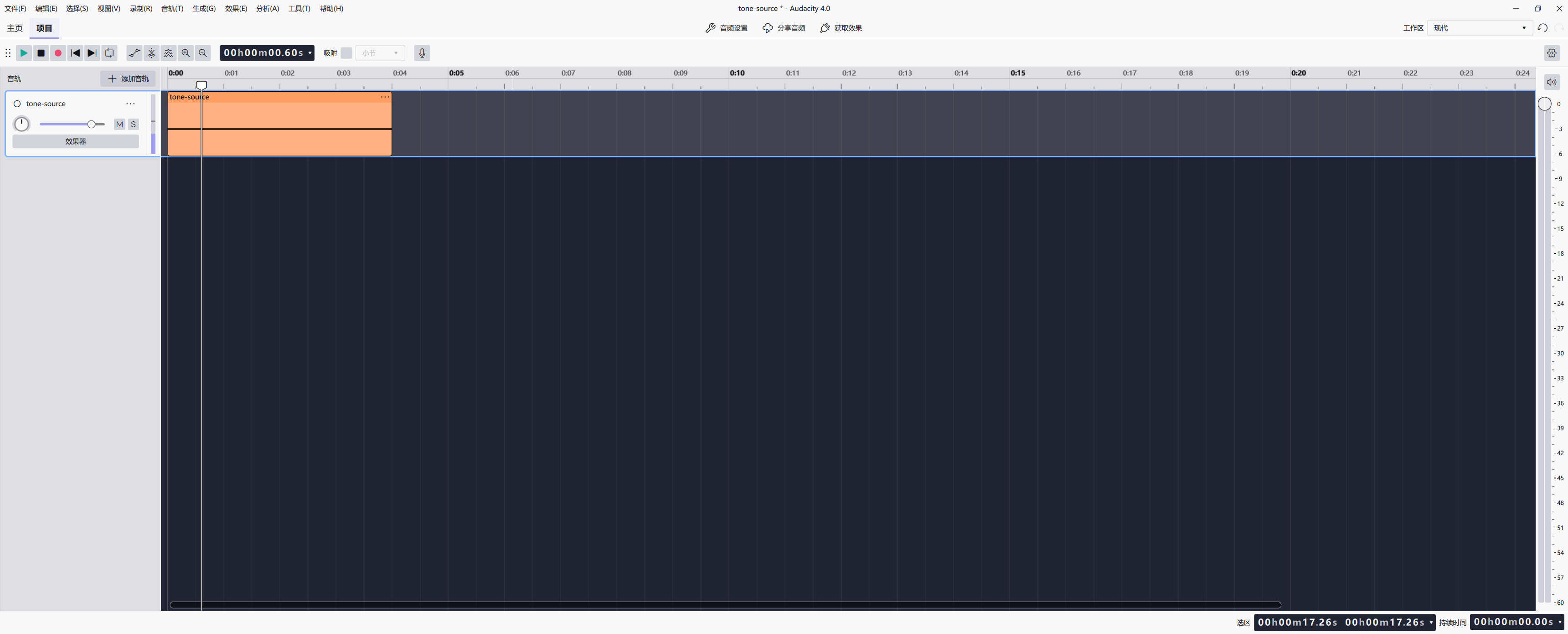
If WAV fails too, this comparison has not isolated an M4A-specific problem. Check local access and the import operation first. If WAV works while M4A does not, continue to the library check.
3. Read Audacity’s FFmpeg status
- Open Edit → Preferences (编辑 → 首选项).
- Select General (通用) and scroll to the bottom.
- Read the FFmpeg library version line. Ours said
没有找到 FFmpeg 库— no FFmpeg library found.
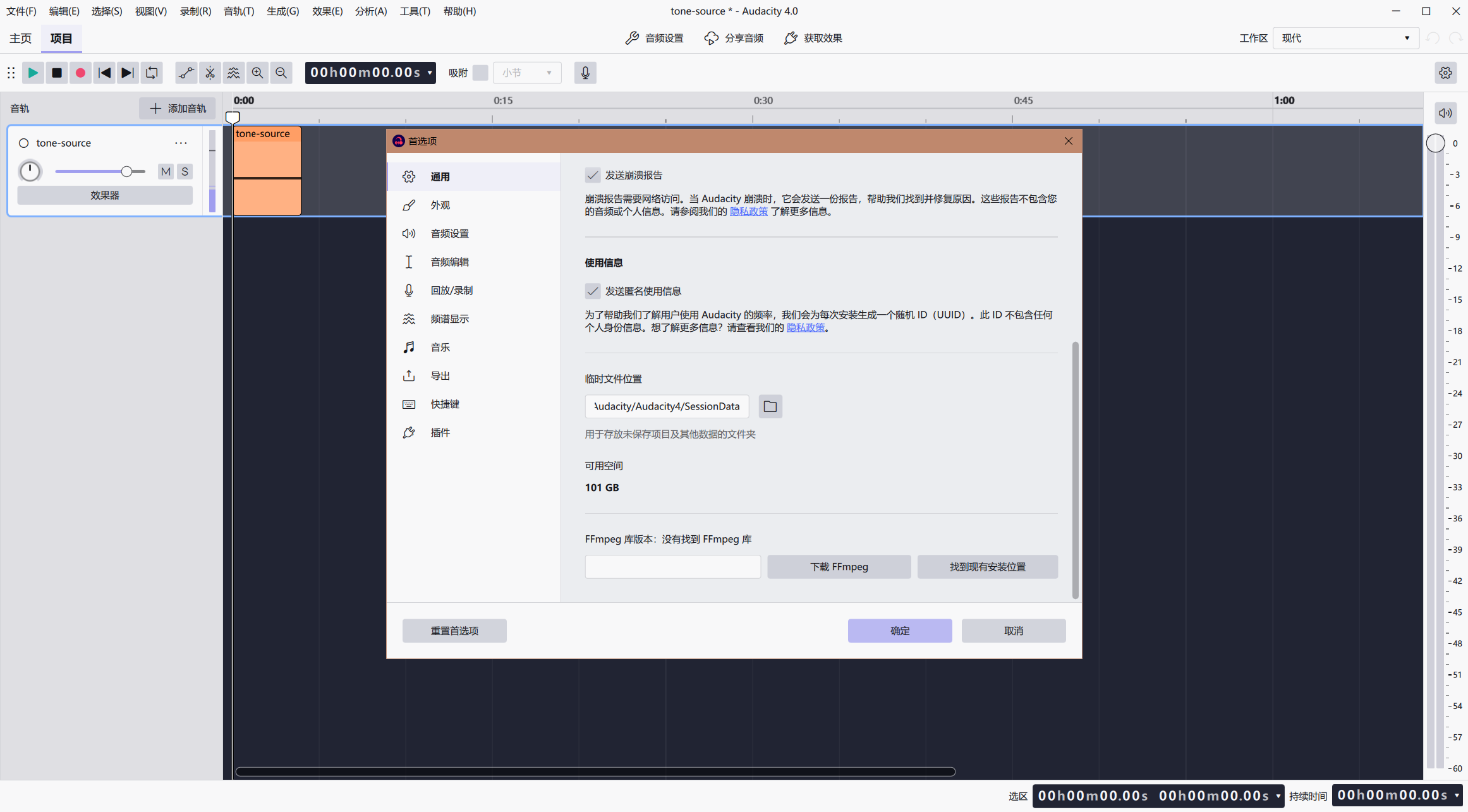
The tested 4.0 interface puts this setting under General, as the current General reference describes. Older instructions may call the category Libraries. Follow your actual version instead of searching for a category that is not present.
A working ffmpeg.exe elsewhere is not this check. We already had a functioning command-line build, yet Audacity reported no library. Its detected shared library is the relevant evidence.
4. Install the compatible library, then check again
Follow the Audacity installation reference to its recommended provider. This x64 Windows case used FFmpeg_5.0.0_for_Audacity_on_Windows_x86_64.exe. Avoid unrelated single-DLL sites and browser-extension advertisements beside download links.
- Choose the package appropriate to your Windows architecture.
- Review its source and checksum. Run it and personally review the license and system prompts. Do not disable security protection to force it through.
- Finish setup, save any unsaved project, and restart Audacity as the official instructions advise.
- Return to Preferences → General and read the status again.
The operator handled the installer and reported completion. We did not capture its screens or independently verify every installer click or restart. The following screenshot establishes that Audacity subsequently detected the library; an installer finishing is not enough.
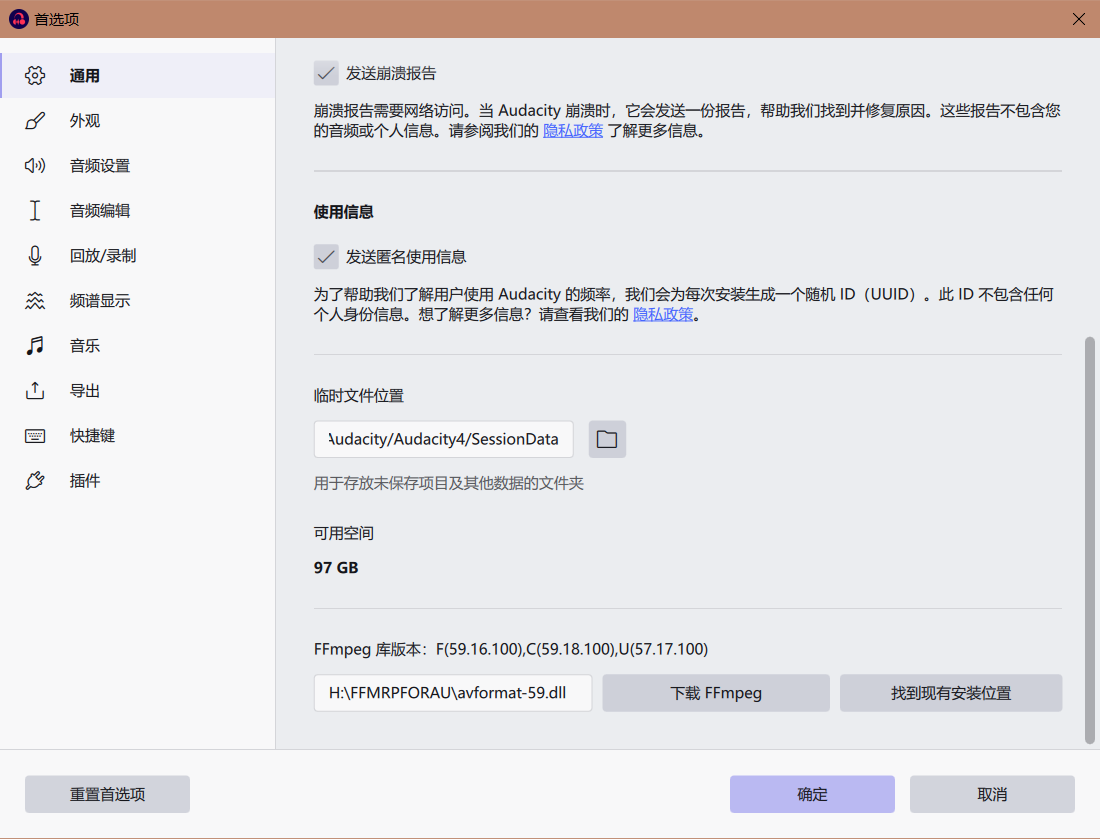
If no library is found, check compatibility and the location control rather than repeatedly reinstalling. The library check above explains the executable-versus-library distinction.
5. If M4A is not listed, enter the complete filename
After detection, the operator still saw no separate M4A entry in the dropdown. The audio filter ended with an ellipsis, such as *.mp3, *.aac, …. That list alone did not establish whether the file could import. There was no All files choice in this dialog; the filename-entry method below worked without one.
- Click OK to leave preferences.
- Choose File → Import → Audio again.
- Select All supported files (所有支持的文件).
- In the File name box, enter the complete path to your downloaded
tone-aac.m4a, including the extension. - Click Open. This goes in the file chooser, not a terminal.
For example, if you saved it in D:\AudioTest, enter D:\AudioTest\tone-aac.m4a. Use your actual folder. Do not rename it to MP3: changing a suffix does not convert AAC. Complete-filename entry was the method that succeeded after library detection in our test.
6. Confirm the new M4A track
A closed file dialog is not proof of import. Look for a new track or clip with the expected name. In the final image, tone-source is the earlier WAV control; tone-aac underneath is the newly imported M4A. Both short clips begin near zero. We did not convert the M4A to WAV for this successful retry.
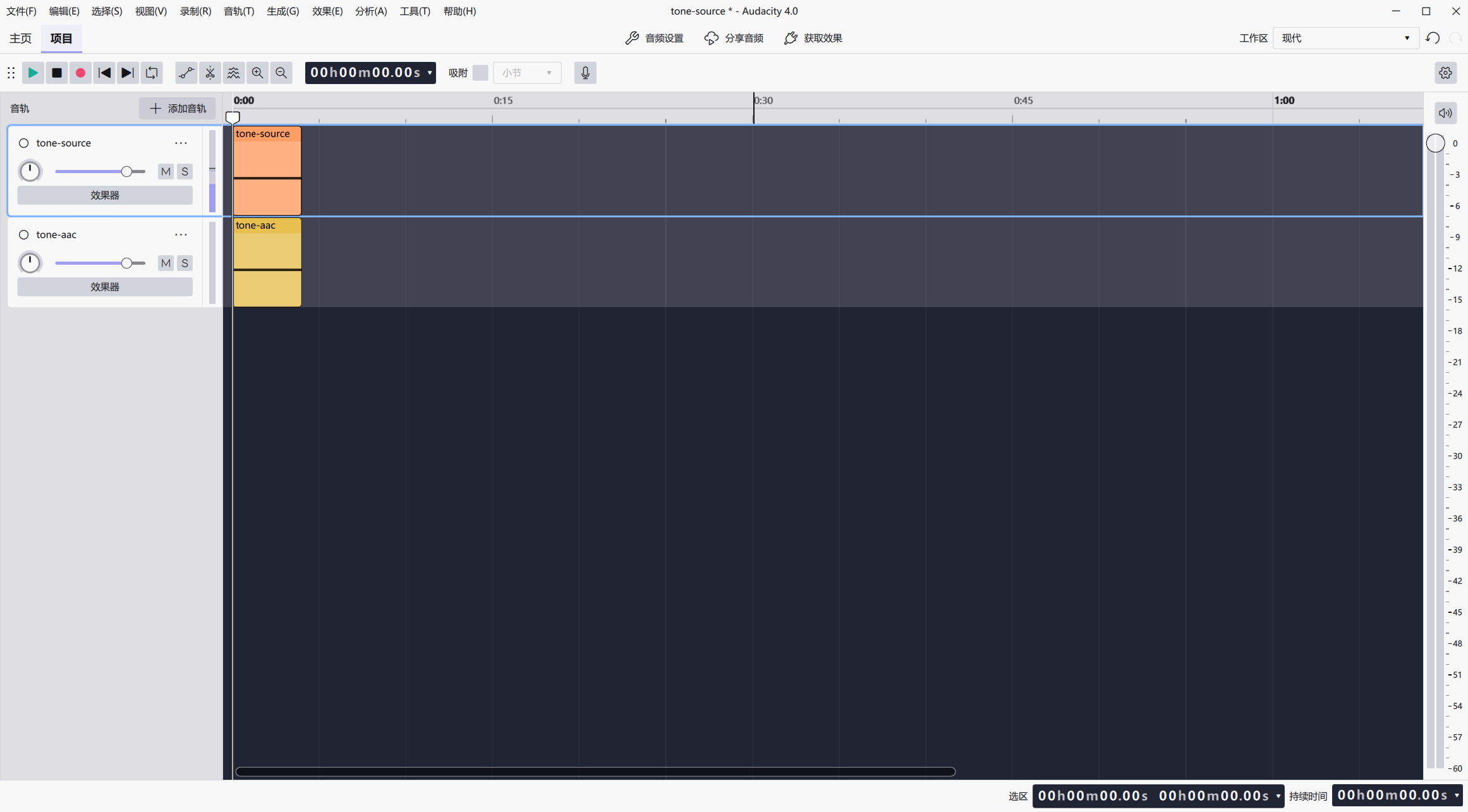
The tone is quiet and the timeline is zoomed out: these images are not detailed waveform inspections. For your own recording, compare duration and channels and listen at the beginning, middle and end. A visible clip alone does not prove that the whole file sounds correct.
7. If the sample works but your recording fails
Once the control imports, stop treating the whole installation as broken. Try a working copy of your recording and keep the exact error. Check that it is fully downloaded rather than cloud-only, and compare its duration in a local player. A failure in one app does not establish corruption.
M4A is a container label; its audio codec can differ. Incomplete downloads, protection and file-specific problems require separate investigation. If the source app offers an authorized PCM WAV export, try that as a separate fallback while preserving the original. Conversion cannot recover detail lost to lossy encoding or guarantee repair of an incomplete file. Do not upload confidential audio merely to identify it or attempt to remove copy protection.
When requesting help, include your Windows and Audacity versions, FFmpeg status, whether both controls imported and the exact error. A synthetic reproducer is preferable to a private interview.
8. What is fixed, and what remains untested
In this case, missing-library status changed to detected versions, and the same AAC/M4A sample then appeared as a new track. That is the observed resolution, not proof that every codec or application release behaves identically.
Audible playback, a whole spoken recording, exports and other operating systems were not verified. Save your edit as a separate Audacity project; export an audio file when sharing a finished recording. Exporting and destination-player checks are separate tasks and are not covered by this import test.
The four images are unchanged operator-supplied screenshots from the guided test, not mockups. The remaining verification limits are listed below; the screenshots establish this specific import result, not universal compatibility.
Sources & test limits
The screenshots document this operator-assisted Windows case. Supporting references below are not additional test results.
- Audacity Manual — Installing FFmpeg ↗
- Audacity Manual — General preferences ↗
- Recommended provider — Windows x64 package and checksum ↗
- Audacity Manual — Importing Audio (legacy; interface differs) ↗
- FFmpeg Formats — MOV/MP4 container family ↗
What this guide does not establish
- Record the About-dialog patch version; the archive label and window title are different evidence.
- Test playback, listening and the whole recording before expanding the claim beyond import.
- Test exports and destination playback separately before describing either as verified.
- Recheck package provenance and menu labels before public release; do not reuse a machine-specific DLL path.
- Test other operating systems and Audacity releases independently before extending this Windows-only case.
Found a reproducible discrepancy? Send a correction. Our editorial policy explains how test evidence and changes are handled.